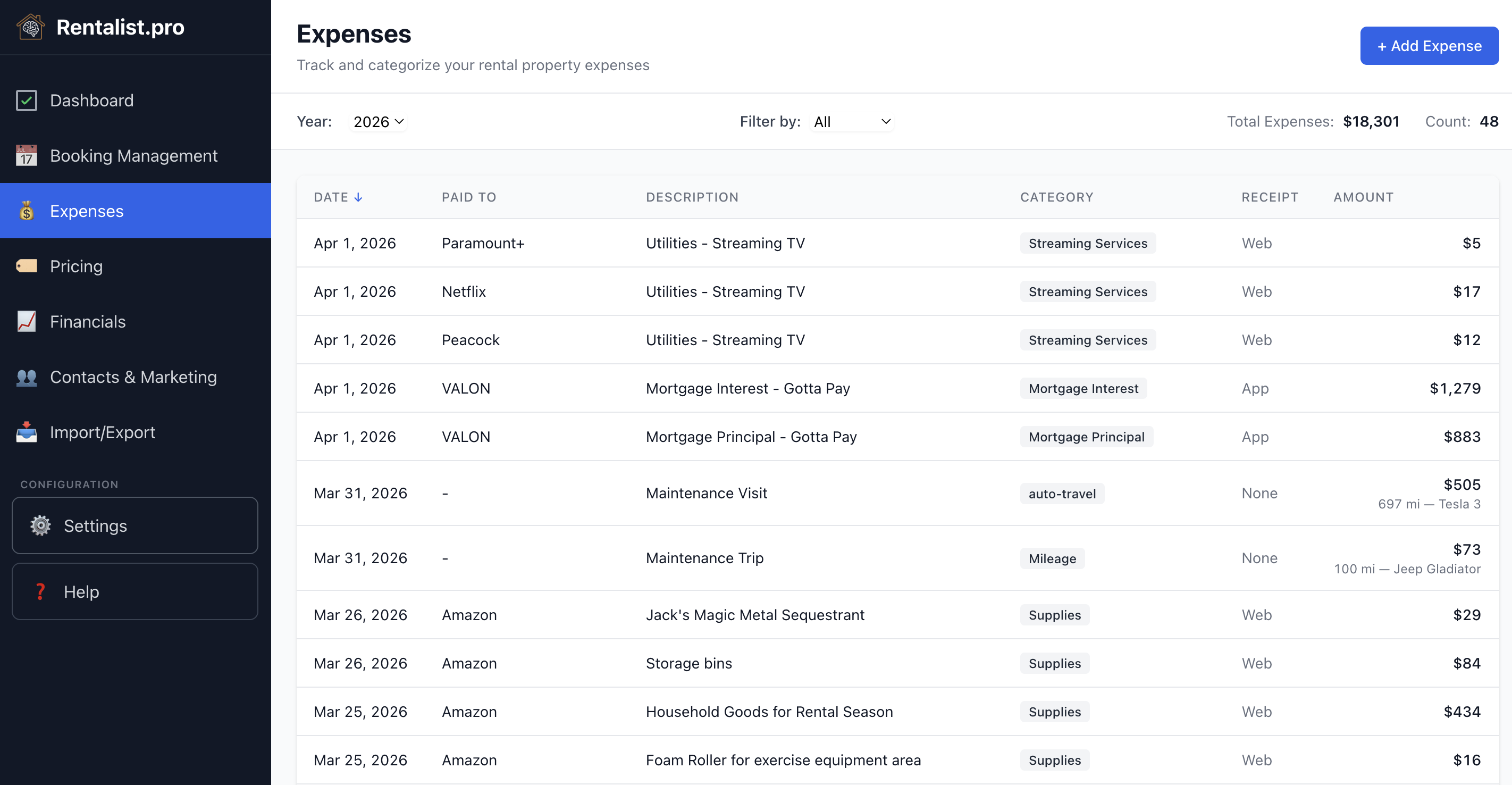
Every cost of running your rental gets logged here — from the mortgage payment to supplies from the hardware store. Each expense is categorized for taxes. At tax time, your year-end summary is already organized the way your accountant needs it. If you manage multiple properties, each expense needs a property assignment. When adding or editing an expense, select which property it belongs to — or choose "Split Evenly" to divide the cost across all your active properties. Make sure you have the correct property selected in the property bar at the top of the screen before viewing your expense list.
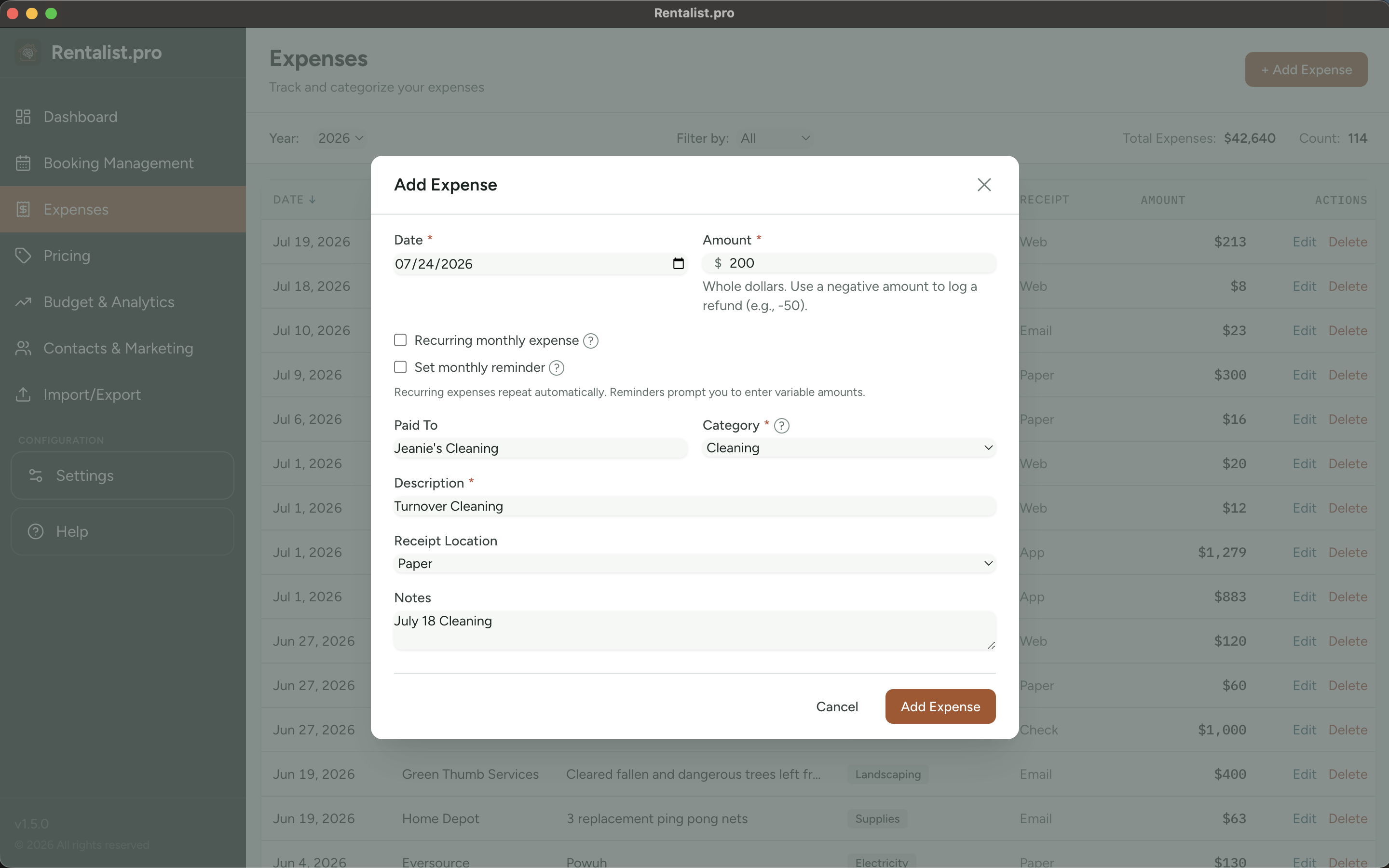
- Date — When was the expense incurred? For credit card purchases, use the purchase date, not the statement date.
- Amount — The total spent. For shared expenses (like a Costco run that includes personal items), enter only the rental property portion.
- Paid To — The vendor or payee. This helps when searching for expenses later ("how much did I spend at Home Depot this year?").
- Category — This is the most important field. The category determines which tax deduction category the expense maps to. Choose carefully — miscategorizing a capital improvement as a repair (or vice versa) affects your taxes.
- Description — What was this for? Useful when the vendor name isn't descriptive (e.g., "Replaced kitchen faucet" for a Home Depot purchase).
- Receipt Location — Where the receipt is: Paper, Email, Web, App, Check, Rentalist, or None. Add your own in Settings if none of those fits. Helpful when your accountant asks for documentation. Attach the receipt itself and this reads Rentalist on its own.
Some costs come back on a schedule — the mortgage every month, the lawn service every two weeks in summer, the trash hauled away after every stay. Check Repeats on the expense form and pick how this one comes back:
- Monthly — the same bill every month. This is the right choice for a mortgage, insurance, or a streaming service.
- Annually — the same bill once a year, on this expense's own date: property tax, an insurance renewal, the annual septic pumping.
- Every few weeks — a service on a set interval, like cleaning every 2 weeks. You can also pick the months it runs (lawn service every 2 weeks, June through September).
- Certain months of the year — a bill you only pay in some months. Tap the months it applies to.
- At turnovers — for a cost that follows your guests rather than the calendar: the cleaner, the linen service. One entry per checkout, cancelled stays excluded. You choose whether the money moves at each checkout or once a month, and whether Rentalist records it or reminds you to.
Enter the expense once, with its amount. On the four calendar schedules — and on a turnover schedule set to record automatically — Rentalist fills in the rest, and each entry shows up in your expense list on its own date. A repeating expense carries on into next year and the year after until you stop it; if you know when it ends, set Stop repeating after to that date.
Variable amounts — For bills that vary month-to-month (like electricity), enter an average and adjust individual entries later, or enter each bill separately as you receive it.
Reminders are for repeating expenses. Check Remind me about this bill under Repeats and choose On the billing day, or a number of days ahead. A reminder then appears on your Dashboard before every future bill, on its own — nothing to reset each time.
A reminder can be snoozed for a week from the Dashboard. It never creates an expense, never spends anything, and never moves a date on its own — it is a note to yourself.
The app comes with standard expense categories pre-mapped to tax deduction categories. Here's how they organize:
- Advertising — Listing fees, photography, marketing
- Cleaning & Maintenance — Cleaning services, landscaping, routine maintenance, garbage
- Commissions — Platform commissions, booking agent fees
- Insurance — Property insurance, liability insurance
- Legal/Professional — Accountant fees, legal fees, property management
- Mortgage Interest — The interest portion of your mortgage payment
- Repairs — Fixing broken things (dishwasher repair, roof patch, plumbing fix)
- Supplies — Consumables (toilet paper, cleaning supplies, light bulbs)
- Property Tax — Annual property taxes
- Utilities — Electric, gas, water, sewer, trash, cable, internet, streaming
- Capital Expenses — Major improvements that add value (new roof, renovation, new appliances)
- Mortgage Principal — The principal portion (not deductible, but tracked for cash flow)
Repairs vs. Capital Improvements
This distinction matters for taxes:
- Repair: Fixes something that's broken — Fully deductible this year
- Improvement: Makes something better or adds value — Depreciated over time
- Examples: Replacing a broken dishwasher = repair. Upgrading to a better dishwasher = improvement. Fixing a roof leak = repair. Replacing the entire roof = improvement.
When in doubt, ask your accountant. The app categorizes correctly either way — you just need to choose the right category.
- Year selector — The dropdown at the top lets you view and manage expenses for any year. The app stores each year separately.
- Year locking — Past years are locked by default, so a stray click can't rewrite a year you've already filed. Last year stays open through April 15, and on April 16 it locks like any other past year. When you genuinely need to fix something, click the lock beside the year selector — or simply start the edit and answer the prompt that appears. The year opens for as long as you're on that screen and re-locks the moment you leave, so you can't wander off and leave your filed history unguarded. Unlocking one year never unlocks another, and importing into a locked year asks the same question. Booking Management works exactly the same way.
- Delete entire year — If you need to re-import a year's expenses from scratch, you can delete all expenses for that year (after unlocking it — last year needs no unlocking through April 15) and start fresh.
You can create custom categories in Settings. Custom categories can map to any existing tax deduction category, or be marked "Other" for the catch-all category. Use custom categories when you want to track something more specifically — like separating "Hot Tub Maintenance" from general "Cleaning & Maintenance" — while still having it roll up correctly for taxes. Expense categories are shared across all your properties — you don't need to set up categories separately for each one.
Some expenses are tax-deductible but not something you "budget" for — like mileage. In Settings, under Expense Categories, you can exclude specific categories from budget tracking. They'll still appear in your expense list and tax summary, but won't show up in Budget Setup or Budget vs. Actuals. If you manage multiple properties, see the Managing Multiple Properties section for details on how expenses are assigned to properties.