If you own a short-term rental, you've discovered that managing the financial side is more complicated than anyone mentioned when you bought the place. There's revenue from multiple booking platforms, each with different fee structures. There are expenses that need to be categorized correctly for your taxes. In many places, there is an occupancy tax to collect and remit. There are guests to track, payments to follow up on, and at tax time, someone needs to organize all of it. And then you need to establish a budget and measure how well your business is doing. Whether this is how you make money or it's a hobby business to support your property investment, managing the finances can be a lot.
Most owners handle the financial management with spreadsheets — a workbook per year, tabs for bookings and expenses, formulas to calculate totals. Some do it with pencil and paper. It works, but it has limits. The formulas can break. Historical comparisons require opening multiple files. And when your accountant asks "how much did you spend on repairs versus improvements?" you're back to sorting line by line.
This app is built specifically for rental property finances. By a rental owner who wanted a better way but didn't want an expensive subscription to a service that can do some things but not all the things. The main differences from using spreadsheets:
- Data entered once gets used everywhere. A booking record feeds your revenue totals, your occupancy calculations, your guest database, and your tax reports. You don't re-enter the same information in different places.
- Categories are already mapped to tax deduction categories. When you log an expense, you pick a category. That category already knows which line it belongs to. At year end, the organizing is done.
- Multi-year data lives in one place. You can see trends across years — whether revenue is growing, which expense categories are creeping up, how this season compares to previous ones.
- Calculations are consistent. Occupancy tax, payment schedules, platform fee adjustments — the app handles the math the same way every time.
- Support for up to 3 properties. If you manage more than one rental, each property gets its own bookings, expenses, pricing, and settings. Financial screens offer combined "All Properties" views so you can see your full portfolio at a glance.
Important: This app helps organize your rental finances for tax preparation, but it does not provide tax advice. Tax rules vary by jurisdiction and entity type. You are responsible for verifying all calculations and consulting with a qualified tax professional to ensure accuracy for your specific situation.
Rentalist.pro is organized around how rental finances actually flow:
- Dashboard — Your financial snapshot. Revenue, expenses, upcoming bookings, and payments due.
- Booking Management — Every reservation, with all its financial details: rent, fees, taxes, deposits, payments received.
- Expenses — Everything you spend to keep the property running, organized by tax deduction category.
- Payouts — Your Airbnb and Vrbo payout files lined up against your stays, so you can see where the money differs.
- Budget & Analytics — Budget planning, budget vs. actual tracking, occupancy tax payments, tax summary, and Analytics.
- Pricing — Your weekly rates calendar, next-year planning, platform-adjusted rates, and entry instructions. Organized in tabs: Pricing, Plan Next Year, Platform Pricing, and Entry Guide.
- Contacts & Marketing — Your guest directory, inquiry tracking, and mailing list tools.
- Documents — Receipts, contracts, permits, and policies, filed by property and year, with renewal dates and reminders.
- Import/Export — Bring in historical bookings, expenses, and past inquiries from spreadsheets. The import wizard detects your columns, assesses spreadsheet quality, handles multi-sheet workbooks, and lets you create new properties during import.
- Settings — Property details, fee structures, tax rates, platform configurations, and multi-property management.
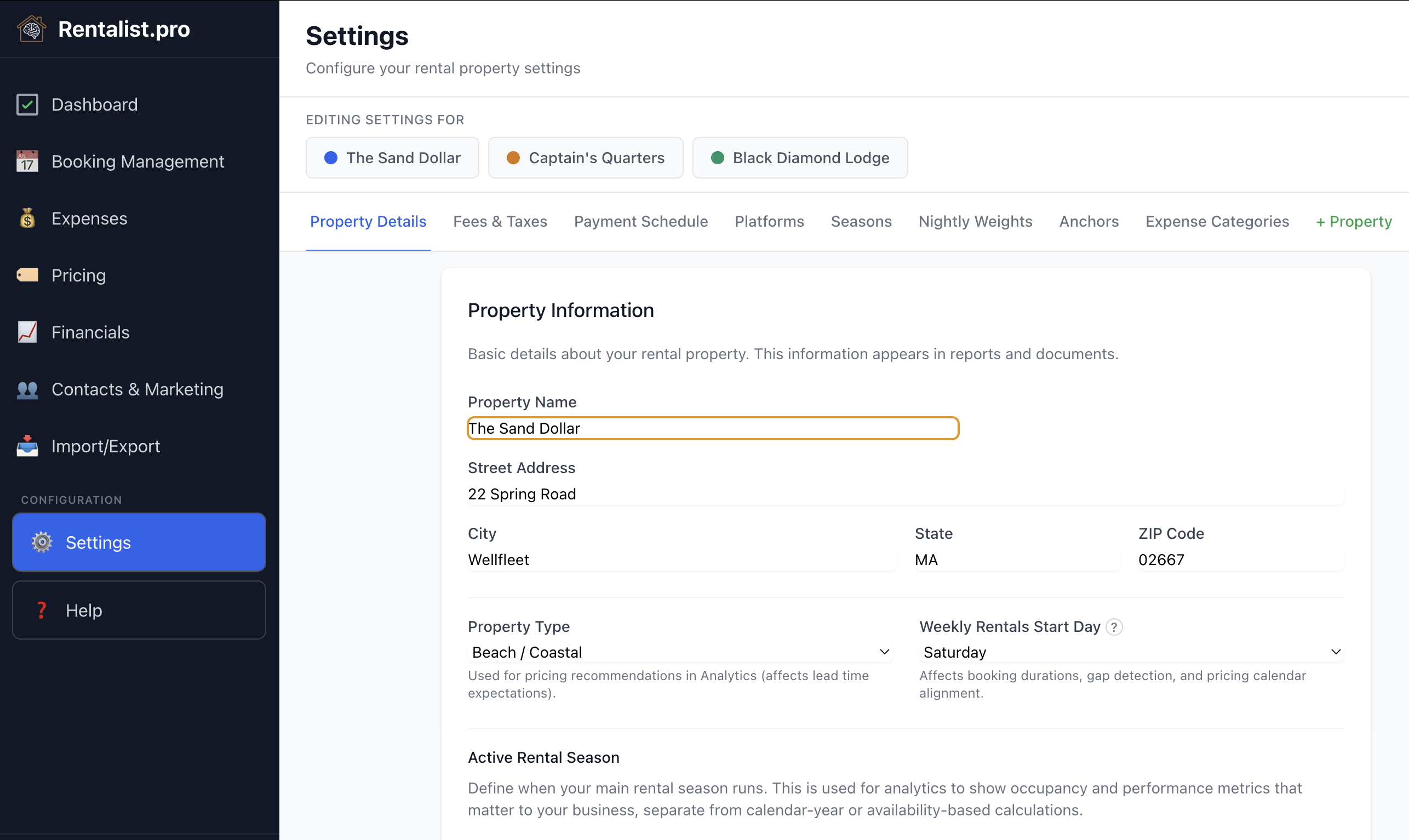
Before entering any data, set up your property and preferences. Click Settings in the left sidebar and configure:
- Property — Name, address, week start day
- Fees & Taxes — Cleaning fee, pet fee, and your occupancy tax rate and remittance schedule
- Payments — How you collect payments (number of payments, timing)
- Platforms — Which booking platforms you use (Airbnb, Vrbo, Booking.com, etc.) and their commission rates
- Seasons — Your rental seasons with date ranges (peak, shoulder, off-peak, closed periods)
Getting these right first means your bookings will auto-calculate fees and taxes correctly. If you manage multiple properties, you can add them using the "+ Property" tab in Settings. Clone settings from your first property to save time.
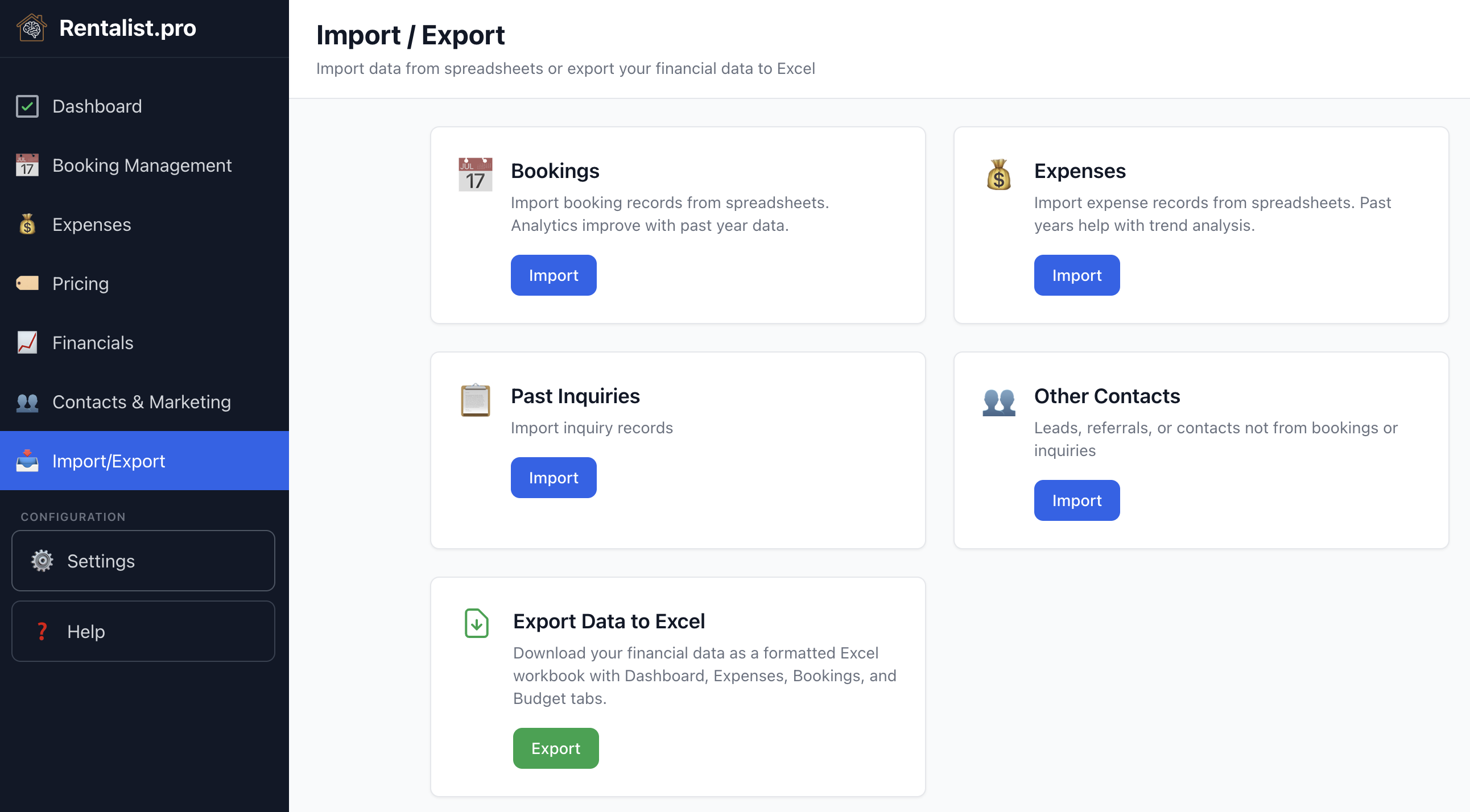
If you have bookings or expenses in spreadsheets from this year or previous years, importing them is the fastest way to get started. Click Import/Export in the left sidebar. The import wizard works with your existing spreadsheet format — you don't need to restructure anything. It detects your columns and figures out dates. For expense categories, it files a name that matches one of your categories and suggests a category for any other name, asking you to confirm before anything is imported. See the Importing Your Data section of this guide for a detailed walkthrough.
Why import first? Even a couple of years of past data transforms the Analytics section from blank charts into real insight — revenue trends, repeat guests, booking pace comparison, and year-over-year expense tracking. Past guest data also feeds your mailing list tools for marketing to people who've stayed with you before.
After importing, review the results. Some records may be flagged for review — the app will tell you which ones need attention. You can always edit imported records to fix any details.
Your inquiry history is probably already in your inbox. Almost nobody keeps a spreadsheet of the people who asked and didn't book — but those emails are still sitting in your mail. Connect that account and Rentalist can read years of platform inquiry emails and line them up to accept in bulk. It's the fastest way to make conversion rates and booking-lead analytics real on day one. See Inquiries from Email.
Not everyone has their rental data in spreadsheets — maybe you've been using paper records, a notebook, or just bank statements and memory. That's completely fine. You can enter everything by hand directly into the app. Here's roughly how long it takes:
- Current-year bookings: About 1-2 minutes per booking (dates, guest info, rate, fees, payments). If you have 15 bookings, budget about half an hour.
- Current-year expenses: About 1 minute per expense. Enter the bills that come back on a schedule first — the mortgage, insurance — and tick Repeats so the app fills in the rest. Then add one-time expenses individually.
- Past-year bookings: Faster since you only need the basics (dates, name, rate). Quick Entry gives you a typing grid for a past year — one row per booking, no spreadsheet needed. About 2 minutes each. Even approximate data is valuable for analytics.
- Past-year expenses: If you have totals by category from prior tax returns, you can enter one annual expense per category instead of individual line items. This takes about 10 minutes per year and still gives you year-over-year comparison data.
Start with the current year's data (Step 1 and Step 3 in the checklist above), then add past years when you have time. The app works fine with just this year's data — historical data enriches analytics and guest marketing but isn't required.
After importing, check your current year's data. If there are bookings or expenses that weren't in your spreadsheets, add them by hand in Booking Management and Expenses.
Current-year accuracy matters for taxes. Make sure this year's bookings have correct fee amounts, tax calculations, and payment records. For past years where taxes are already filed, approximate data is fine — the main value is analytics and guest history.
Click Budget & Analytics in the left sidebar, then Budget Setup. Setting up a budget — even partway through the year — lets you track whether revenue and expenses are on target.
- Revenue forecast: Estimate how many weeks you expect to rent and at what rate
- Expense budgets: Set expected spending for each category. If you imported last year's data, you can initialize the budget from last year's actuals and adjust from there. Budget changes save automatically.
Guest contacts are automatically created when you save bookings. Click Contacts & Marketing in the left sidebar, then Guest Directory to see your contacts. They should already be populated from imported and manually entered bookings.
If you're starting the app partway through your rental year, the same steps apply. Be thorough with current-year data (you'll need it for taxes) and don't stress about getting historical data perfect (those taxes are already filed). Even approximate past data makes Analytics useful.
Once you're set up, enter bookings and expenses as they happen. It takes a minute or two per entry — much easier than reconstructing everything at year-end. The Dashboard keeps you updated on payments due, and Budget vs. Actuals shows whether spending is on track.